Telegram Bot Buttons: Send Readers from a Message to Your Group
To send a reader from a Telegram bot message to your group, place an inline URL button beneath the message and point it to the intended group invitation. Prepare the group first, choose whether admission needs approval, and test the complete journey with a non-admin account.
A button is an entry point, not an automatic membership action. This walkthrough uses a hypothetical workshop community: the message explains the discussion, the reader chooses to visit, and the group admits them through the configured route.
1. Prepare the group before inviting readers
Write a description that names the audience and the discussion: for example, workshop participants sharing project questions. Pin a short welcome with the rules, the first useful action and the person to contact for help. Set posting permissions for the conversation you actually want. A group intended for peer discussion needs a different setup from a mostly read-only notice space.
Assign a moderator before promoting the invitation. Decide who reviews requests, removes unrelated posts and answers new-member questions. Open the group as an ordinary member to check that the description and welcome make sense without an administrator explaining them. Our Telegram marketing strategy for an existing audience helps place this invitation within a wider acquisition plan.
2. Create a campaign invitation and choose admission
Create an invitation specifically for this placement and give it a recognizable management name. Decide whether people should join directly or request approval. For a workshop with eligibility criteria, request-based admission gives your moderator a review step. Explain those criteria in the invitation message so readers know what happens next.
For API-managed invitations, createChatInviteLink requires appropriate administrator rights. Set creates_join_request when approval is required; that option cannot be combined with member_limit. A bot approving requests through approveChatJoinRequest needs can_invite_users. Ask your developer to verify those permissions and the update handling before launch. Keep the invitation in the campaign record so you can replace or revoke the correct link later.
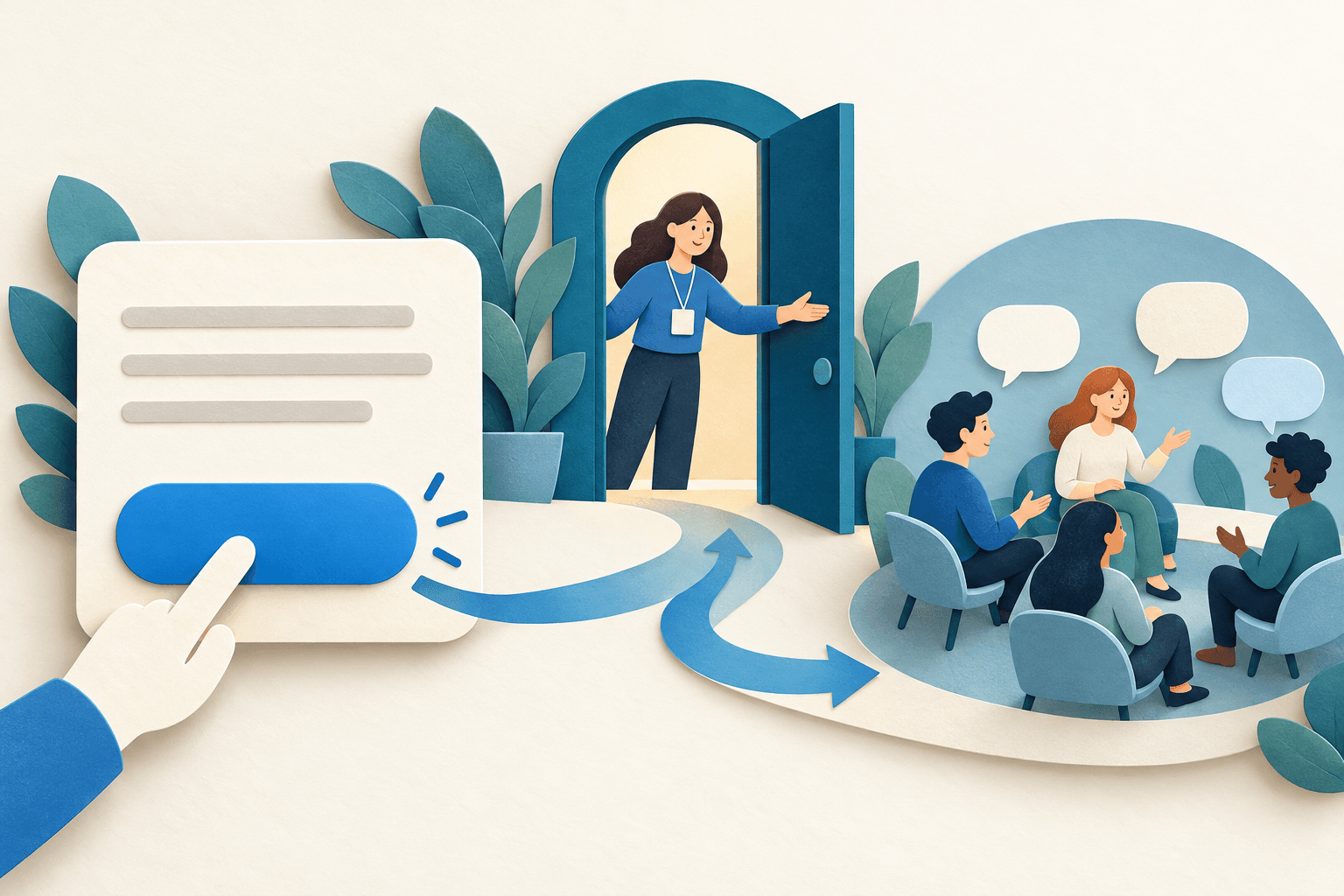
3. Put an inline URL button beneath the bot message
Use the button type that matches the action. A URL button opens the destination; callback_data sends an interaction to your bot for processing. A reply keyboard presents input choices and is not the same as an inline link beneath a message. If the only action is visiting the invitation, a URL button avoids an unnecessary intermediate bot step.
Give your developer or bot builder the message, button label and invitation separately. A hypothetical message could say: “Join the workshop discussion to compare project ideas. Requests are reviewed by the workshop team.” Use “Request to join the workshop group” as the button text when approval is enabled. The label should describe the next step rather than promise immediate membership.
| Element | Illustrative value or purpose |
|---|---|
| Message text | Explain the group and admission step |
| reply_markup.inline_keyboard | One row containing the invitation button |
| text | Request to join the workshop group |
| url | Your actual campaign invitation |
| callback_data | Use for a bot action, not as the invitation URL |
4. Test with a non-admin account
Send the draft bot message to a test conversation that can legitimately receive it. Tap the button from a non-admin account, confirm the correct group, submit a request if required, then have the moderator process it. Check that the approved member sees the pinned welcome and can perform the intended first action. Administrator access can conceal problems ordinary readers encounter.
Repeat the test after changing the invitation or button. If the destination fails, check the stored URL and whether the invitation was revoked or expired. If a request remains pending, inspect the moderation process and bot rights instead of changing the button label. Use our guide to Telegram contacts and bot message access when the bot cannot reach the test user.
- Confirm the message and button are visible.
- Confirm the correct group and admission route.
- Confirm approval, welcome visibility and posting permissions.
5. Count joins separately from button interactions
A URL click does not produce a callback_query just because the button sits under a bot message. Do not build a click report by counting callbacks from unrelated buttons. Track the events your implementation actually exposes and keep invitation requests, approvals and actual membership separate. Forwarded invitations can also weaken claims about which placement brought a person in.
Review whether new members find the discussion useful: questions asked, moderation effort and relevant customer enquiries matter more than a decorative button count. PSYKE does not create invitation buttons or admit members. Telegram checking services address a separate owned-number-list task; they are not required for a reader to tap the invitation.
Frequently asked questions
Should a group invitation use url or callback_data?
Use an inline URL button for the invitation destination. A callback button is for an action handled by the bot; it does not inherently open your group.
Does tapping the button add the reader automatically?
No. The invitation route determines what follows. With approval enabled, the reader submits a request and an administrator must process it.
Why does the invitation work for the administrator but fail for a reader?
Test the exact published invitation with a non-admin account. Check revocation, expiry, admission settings and the moderator or bot permissions needed to process requests.