Telethon Buttons Not Showing or CallbackQuery Not Firing? Check the Bot and Button Type
A Telethon message can arrive without its expected keyboard, or display buttons while your CallbackQuery handler stays silent. These symptoms need separate checks: which account sent the markup, which button type was used, and which event your application listens for.
This guide targets Telethon 1.45.0 with Python 3.14.6. It builds a small bot that responds to an incoming private /start command. The preparation and example checks are limited to syntax and offline mocks; no live Telegram login, delivery or button click is claimed.
1. Verify the identity stored in the session
The direct buttons argument is for bot-authenticated clients. Supplying Button.inline to a normal user-account sender does not turn that account into a bot. A user sending an inline result supplied by a bot is a separate via-bot workflow; it does not establish direct user-client markup support.
A session file remembers its authorized identity. Passing a bot token to start does not prove that a reused, already authorized session switched accounts. Use a dedicated bot session path, then inspect await client.get_me(): require both me.bot and the expected numeric bot ID. The ID check also catches a session belonging to another bot.
Set TELEGRAM_API_ID, TELEGRAM_API_HASH, TELEGRAM_BOT_TOKEN, EXPECTED_BOT_ID and TELEGRAM_BOT_SESSION in your environment. Use your own application credentials and bot credentials; keep tokens and session files out of source control and logs. If the identity guard fails, stop and select the intended dedicated session before testing the menu.
2. Match the button to its event
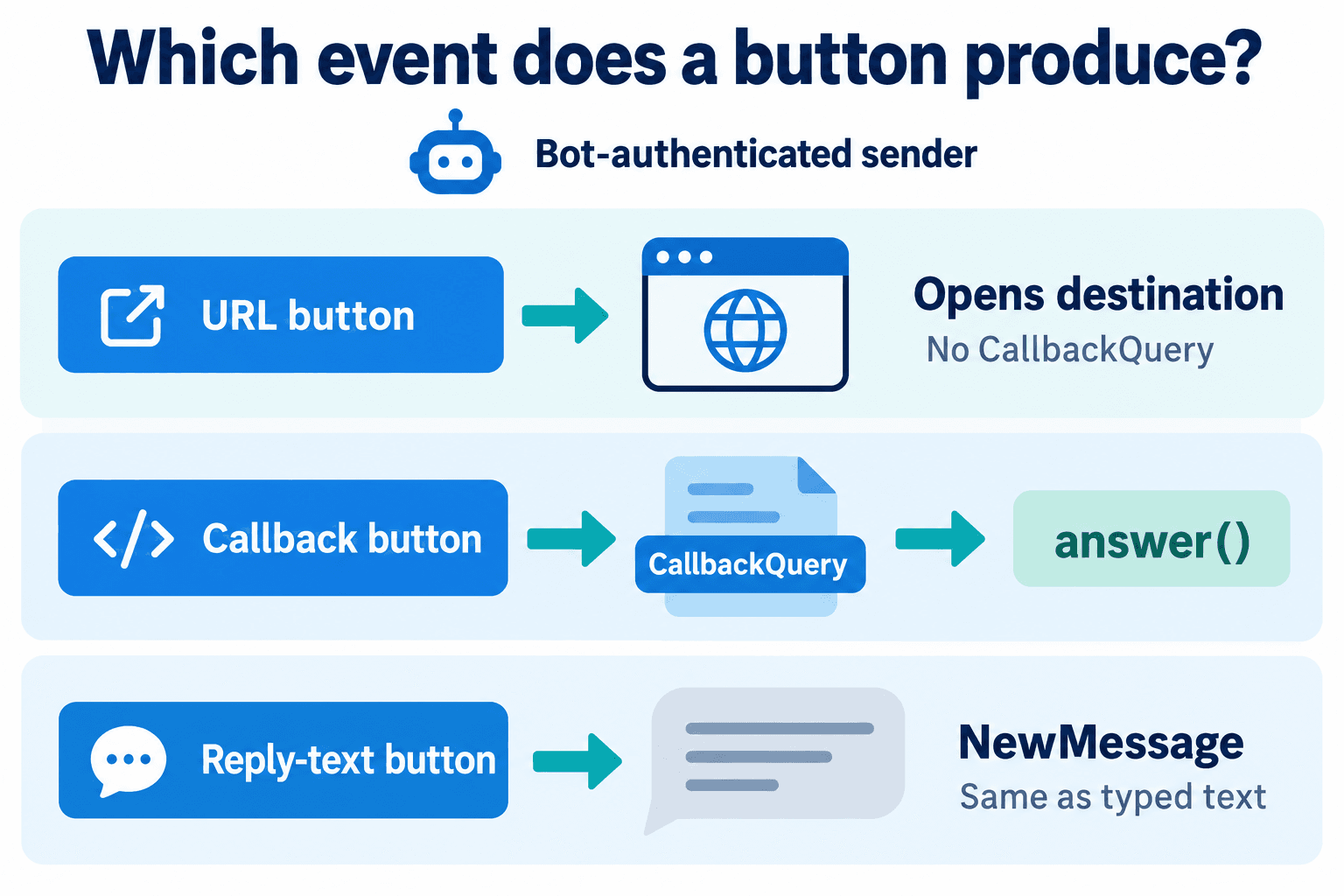
Visible button text is a label, not a universal command. A URL button navigates, a callback button sends its payload, and a reply-text keyboard produces an ordinary message. Registering CallbackQuery for all three leaves two paths without the handler you expected.
URL and callback buttons can share inline markup. Reply-keyboard buttons belong in a separate keyboard and cannot be mixed with inline buttons. Callback data is limited to 64 bytes, so use a compact identifier such as b"details" rather than a long document or serialized record.
| Button | Result | Handler to expect |
|---|---|---|
| Button.url | Opens its destination | No direct CallbackQuery notification |
| Button.inline | Sends callback data | events.CallbackQuery; call answer() |
| Button.text | Sends visible text as a message | events.NewMessage; same as typed text |
3. Build a minimal private-chat inline menu
Install the pinned dependency with python -m pip install "Telethon==1.45.0" in your environment. Save the following as bot_buttons.py and run it only when ready to connect your own test bot. The URL is an example documentation destination; replace it with the page your menu should open.
import asyncio
import os

from telethon import Button, TelegramClient, events


async def main():
    client = TelegramClient(
        os.environ["TELEGRAM_BOT_SESSION"],
        int(os.environ["TELEGRAM_API_ID"]),
        os.environ["TELEGRAM_API_HASH"],
    )
    expected_id = int(os.environ["EXPECTED_BOT_ID"])

    try:
        await client.start(bot_token=os.environ["TELEGRAM_BOT_TOKEN"])
        me = await client.get_me()
        if me is None or not me.bot or me.id != expected_id:
            raise RuntimeError("Session does not match the expected bot")

        @client.on(events.NewMessage(incoming=True, pattern=r"^/start(?:\s+\S+)?$"))
        async def start_menu(event):
            if not event.is_private:
                return
            await event.respond("Choose a next step:", buttons=[[
                Button.inline("Show details", data=b"details"),
                Button.url("Read the guide", "https://blog.p-syke.com/articles/telegram-bot-button-group-invite"),
            ]])

        @client.on(events.CallbackQuery(pattern=b"^details$"))
        async def details(event):
            if not event.is_private:
                return
            await event.answer()
            await event.edit("Details received. Open the guide for the invitation flow.")

        await client.run_until_disconnected()
    finally:
        await client.disconnect()


if __name__ == "__main__":
    asyncio.run(main())
The callback pattern is bytes and matches the supplied data exactly. answer() acknowledges the callback and clears the loading indicator; editing the message text is a separate action. Request /start again to obtain a fresh menu for another test.
The running update loop is essential: registering handlers and exiting immediately cannot receive later presses. The bot only responds to incoming private commands in this example. Have the tester open the intended bot and send /start; the guide to bot-start message access explains that private-chat prerequisite.
4. Handle reply-keyboard text with NewMessage
For a text keyboard, define the helper below above main(), then add install_reply_keyboard(client) inside main() after the bot identity guard succeeds and before run_until_disconnected(). Send /keyboard privately to request this separate keyboard. It is not a row to add to the inline menu.
def install_reply_keyboard(client):
    @client.on(events.NewMessage(incoming=True, pattern=r"^/keyboard$"))
    async def keyboard(event):
        if event.is_private:
            await event.respond("Choose:", buttons=Button.text("More information"))

    @client.on(events.NewMessage(incoming=True, pattern=r"^More information$"))
    async def more_information(event):
        if event.is_private:
            await event.respond("This arrived as message text.")
A person typing “More information” triggers the same text handler. NewMessage does not prove that the keyboard was pressed. Likewise, CallbackQuery does not wait for the next typed answer: a multi-step conversation needs separate message handling and appropriately scoped state.
5. Verify rendering, callback acknowledgement and navigation separately
First confirm the expected bot identity. Then send /start from your test account, inspect the returned message and its reply_markup, and confirm that the two inline buttons render. Press Show details and check the matching callback handler, acknowledgement and edited text. Keep credential values and session contents out of diagnostic output.
Open Read the guide separately. No CallbackQuery is expected from that URL button; navigation needs its own observation. For a group destination, review the invitation and admission journey. For attribution, use a suitable bot-start payload as described in campaign deep links; a plain URL button is not a built-in callback click counter.
If a path fails, record which observation is missing instead of repeatedly resending a campaign. Syntax checks and mocked events can catch code mistakes, but cannot establish real authorization, delivered markup or a successful click. This article does not establish Telegram sending quotas or promise a safe sending threshold.
PSYKE provides Telegram number checks, a separate preparation task from running your bot. Number checks do not send this menu, acknowledge callbacks or establish permission to contact someone. Keep the number-checking result and the bot interaction test as distinct records.
Frequently asked questions
Can a Telethon user account send inline buttons directly?
The direct buttons parameter requires bot authentication. A user can send an inline result provided by a bot through the separate via-bot workflow. That does not make ordinary user-client send_message markup supported; check the actual session identity before diagnosing missing buttons.
Why does Button.url never trigger my CallbackQuery handler?
It opens a destination without directly notifying the bot through CallbackQuery. Use Button.inline when your bot needs a callback payload, and acknowledge it with answer(). Use NewMessage for reply-keyboard text; typing the same text produces the same message event.