Where Is Your Telegram Webinar Recording? Record and Publish a Replay
Your Telegram webinar has finished, but subscribers cannot find a replay. First establish whether an admin actually started recording. Running a live event alone does not establish that a recording exists.
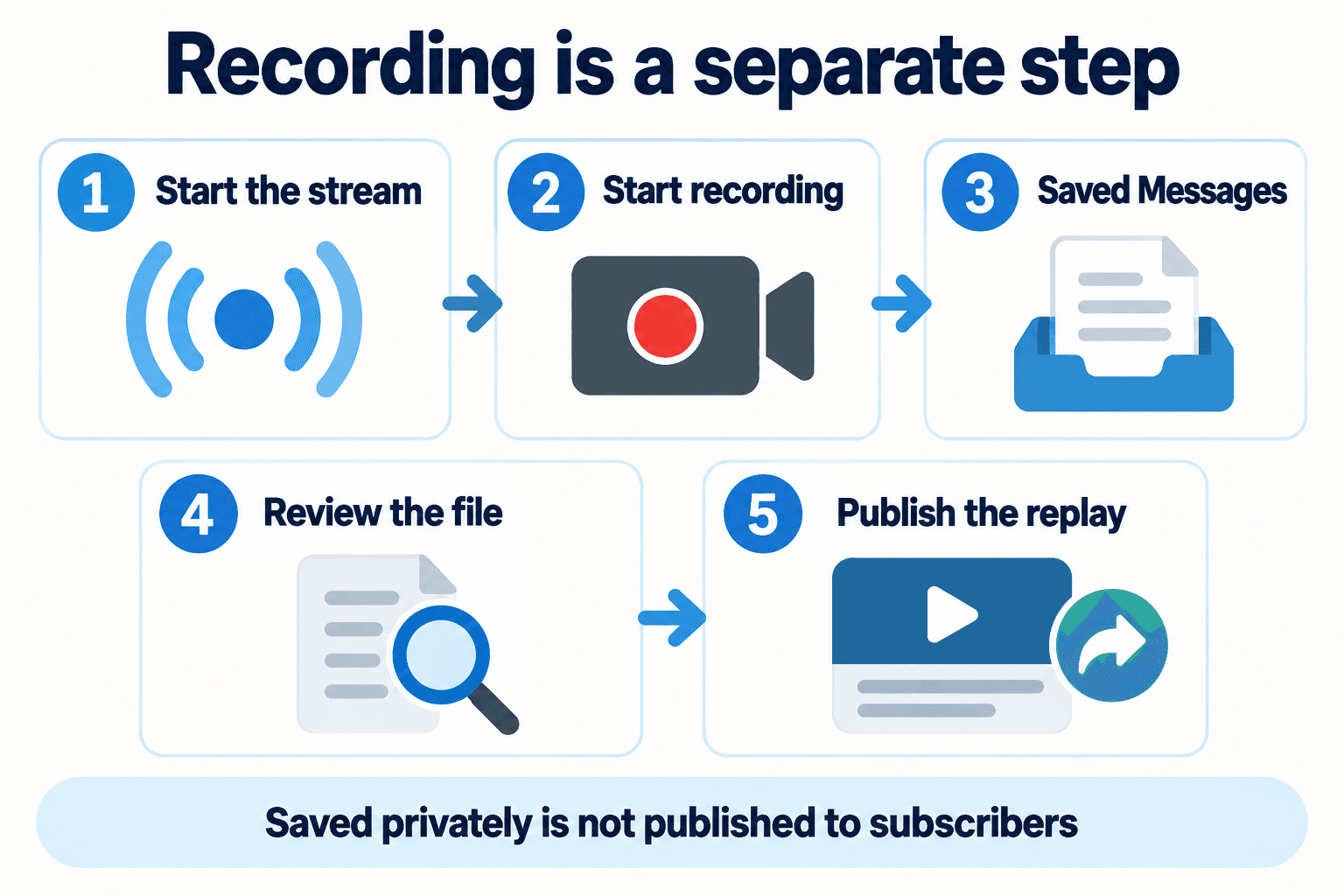
For a channel live stream or group video chat, an admin must explicitly enable recording. After stopping it, look in that admin’s Saved Messages, inspect the file, and publish the replay separately. Treat recording, file review and audience publication as three distinct tasks.
1. Assign the broadcasting and recording admin before the event
Name the person who will operate the event and the account that will record it. Confirm that the operator can manage video chats or live streams in the intended community. Telegram’s group-call documentation identifies the manage_call admin right for creating these events; being a subscriber is not sufficient.
This workflow covers a channel Live Stream or a group Video Chat. Live Stories and private calls are different features; do not transfer assumptions about their recording or replay behavior to a channel webinar.
Prepare a brief rehearsal with consenting colleagues. Tell speakers what will be recorded and where you intend to publish it. Decide whether the audience needs slides and demonstrations or only speech, then choose the recording format accordingly. Keep the recording account’s name in your event notes so another moderator knows whom to ask for the file.
2. Start the live event and explicitly enable recording
In an official client, open the community profile and look for Live Stream in a channel or Video Chat in a group. Telegram’s published navigation uses those labels; the location and appearance of controls can vary with client and version. Check the account and community if the expected control is missing.
Start the actual event. A scheduled video chat or live stream still requires an admin to start it manually. The scheduled time is not a recording trigger.
Inside the broadcast, open its menu, commonly shown as ⋮ or ⋯, and select the recording action. Telegram’s official recording tip describes this menu and portrait or landscape video options. Choose the available settings for your material and confirm that recording has begun before the substantive presentation starts.
Have the rehearsal participant speak and show the material you plan to use. Confirm the visible recording state in your client and check what the participant can hear and see. A working broadcast is useful evidence about the live experience; inspect the resulting file as well before promising that the replay is usable.
3. Find the recording in the recording admin’s Saved Messages
Have the recording admin stop recording when the session is complete, then open Saved Messages in that account. Telegram documents delivery there when recording stops; its official tip also describes delivery when the broadcast ends. Do not search only the channel’s post history or another moderator’s Saved Messages.
If the file is missing, ask which account used the recording control and whether it actually started. Separate a missing-file investigation from publication: a recording in a personal Saved Messages chat has not yet become a subscriber replay. The sources below provide no processing deadline or retroactive recovery procedure, so avoid promising either to customers.
4. Check the file before promising a replay
Open the received file and review the beginning, a demonstration or screen-sharing segment, and the end. Listen for intelligible speech and check that the relevant visual material is readable. Confirm that the selected recording format contains the content advertised to attendees.
Hypothetical marketer example: a customer-training team rehearses a product workshop, records a short consenting demonstration, stops recording and checks the file in the operator’s Saved Messages. For the real workshop, the team repeats those checks before publishing. This is a suggested procedure, not a report of a tested event.
Use the observation you actually have to choose the next action. Do not announce a complete video replay merely because a live session ran successfully. If the result is incomplete, describe what is available and prepare a separate explanation or replacement demonstration where appropriate.
| Observation | Check | Next action |
|---|---|---|
| No recording file found | Recording account and explicit recording start | Investigate with that admin before promising a replay |
| File received | Audio, visual material and useful coverage | Review before publication |
| File is usable | Destination and intended member access | Publish and verify the replay post |
5. Publish the replay with one useful next step
Prepare a separate replay post in the intended channel or group. Give it a descriptive title, explain what the recording covers, and include only timestamps you have checked against the actual file. Verify the published destination and playback from an ordinary member account that should have access.
If you want to release the announcement later, use the scheduled-post review workflow after checking the recording. Scheduling a message is a separate operation from scheduling or starting the live event.
Give viewers one relevant response route. Channel comments can support public questions beneath a replay; a Telegram Business chat link can offer a private enquiry route. Assign someone to answer, and record actual questions or enquiries separately from replay views. A replay does not guarantee attendance, enquiries or sales.
PSYKE can support a separate number-check task when your team has an authorized phone-number list. That task does not establish who watched the workshop. Keep the replay handoff focused on the reviewed file, the correct destination and the person responsible for follow-up.
Frequently asked questions
Does scheduling a Telegram live stream start it or record it automatically?
No. A scheduled channel live stream or group video chat requires an admin to start it manually. Recording is a separate action inside the live event; verify that it has started.
Can I recover a replay if nobody started recording?
First check with the admin who may have recorded and inspect that account’s Saved Messages. These official sources do not establish retroactive recovery of an unrecorded broadcast. Do not promise a Telegram replay without finding and reviewing an actual file.