Telethon Cannot Find an Input Entity? Resolve the Peer in the Current Account
Your channel reporting script has a Telegram ID, but Telethon stops with “Could not find the input entity.” Start by checking which account and session are running the script. A number copied from another tool is not a complete lookup route.
Resolve an accessible username, locate the target in that account’s existing dialogs, or use the input sender supplied by an incoming event. The examples below perform resolution and a small read; use them before reconnecting a campaign job.
1. Understand the object the request needs
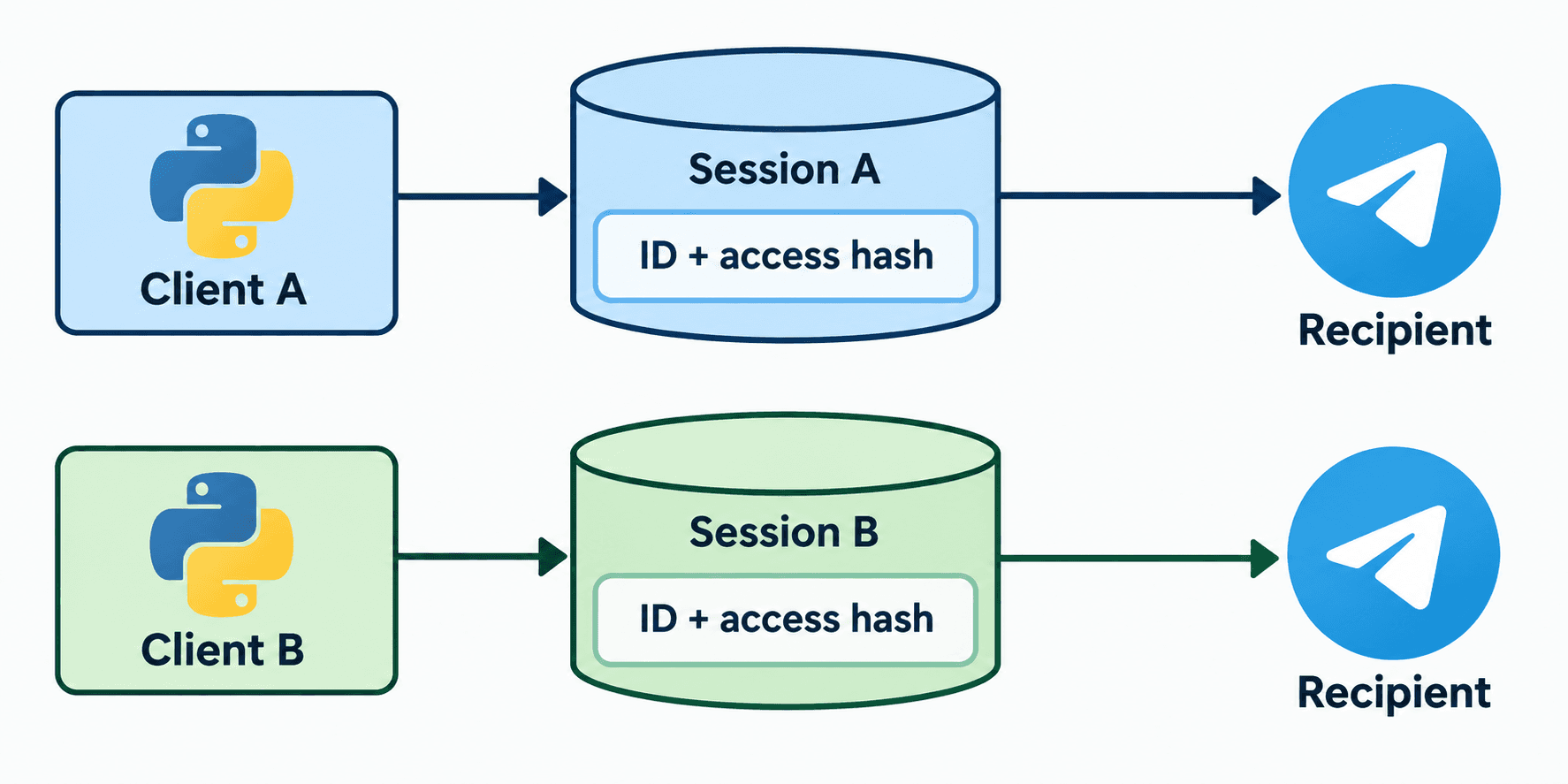
An ID identifies a peer. For users and channels, an input peer normally also carries an access_hash. Telethon caches encountered entities in its session; get_input_entity prefers that cache. Hashes are account-specific: do not reuse one account’s hash with another account. Basic groups use a different input-peer shape. Telegram also scopes peer hashes to the login authorization: separate logins to the same account cannot reuse them. See the access hash authorization guide for the full boundary.
The official entity guide explains these distinctions. Historical issue #605 shows the same operational mistake: attempting an ID lookup before finding the channel through dialogs. Its old code and exception types are not a current implementation template.
2. Reproduce resolution with one known username
Example target: Telethon 1.45.0 stable v1 documentation, checked 28 October 2026. The snippets were syntax-checked with Python 3.14.6; Telethon was not installed in that check environment, and no live Telegram request was exercised. The first snippet assumes credentials in TG_API_ID and TG_API_HASH, an interactive user login, and an accessible test channel username.
import asyncio
import os
from telethon import TelegramClient

async def main():
    async with TelegramClient(
        "entity_demo",
        int(os.environ["TG_API_ID"]),
        os.environ["TG_API_HASH"],
    ) as client:
        # Replace with a public username you can access.
        peer = await client.get_input_entity("@your_test_channel")
        messages = await client.get_messages(peer, limit=1)
        print("Resolved:", type(peer).__name__)
        print("Readable messages:", len(messages))

asyncio.run(main())
Replace the placeholder before running. Inspect the resolved object type and read result. A zero-length result is an observation to investigate, not proof that the intended channel was checked. Confirm the destination separately in your own test account before enabling any write operation.
3. For a channel without a username, match an existing dialog
For a target already in this account’s dialogs, iterate those dialogs and use the matching dialog’s input entity. This also avoids guessing a peer type from an unmarked positive number.
from telethon import utils

async def resolve_existing_dialog(client, target_id):
    # target_id is the marked ID saved by this application.
    async for dialog in client.iter_dialogs():
        if utils.get_peer_id(dialog.entity) == target_id:
            return dialog.input_entity
    raise LookupError("Target absent from this account's dialogs")
Call this helper from inside an authenticated async client block. Store marked IDs with their sign and peer type; Telethon uses different marked forms for users, basic groups and channels. Compare IDs produced by utils.get_peer_id rather than manually adding or removing a channel prefix.
If the helper raises LookupError, check the account, stored ID and expected membership. Stop the job with that diagnosis. Repeatedly scanning unrelated groups is not a useful substitute for identifying where this account can actually see the intended destination.
4. When handling a message, keep its sender context
For an incoming event, ask the event for get_input_sender instead of rebuilding a sender lookup from the bare sender ID. The getter can use available event context; a missing sender still needs handling.
from telethon import events

@client.on(events.NewMessage(incoming=True))
async def on_message(event):
    sender = await event.get_input_sender()
    if sender is None:
        return
    # Use this peer in this account's authorized workflow.
    print("Sender resolved:", type(sender).__name__)
Register this handler on your existing authenticated client before running its event loop. It prints only a type name. It sends no reply. Keep a small controlled test conversation so the person validating the integration can connect the observed event to the expected sender.
5. Separate lookup, access and operation failures
Treat this as a staged diagnostic. First resolve the intended peer, then test the particular read or write operation with the necessary account rights. A resolved peer is not permission to post, invite members or obtain private information. Honor Telegram waits and permission errors; do not loop until a request happens to pass.
| Observed result | Check next | Useful evidence |
|---|---|---|
| Bare ID fails | Current account, session path and known source of target | Username or matching existing dialog |
| Works until restart | Same session path and normal disconnect | Resolution after reopening that session |
| Works on account A only | Account B access and its own resolution | Peer obtained while authenticated as B |
| Peer resolves, operation fails | Specific method, membership and rights | Actual operation error without retrying sends |
6. Verify the workflow before returning it to operations
Record the Python and Telethon versions from the environment that will run the job. Reopen the same session and repeat the harmless lookup. In your test community, confirm that the peer represents the intended destination, then validate the exact authorized operation. Keep session files and credentials out of logs and article screenshots.
These are Telethon MTProto user-client examples. MTProto bot authentication still uses Telethon, but account capabilities differ; the HTTP Bot API has a separate interface. Do not apply a Bot API chat_id recipe or user-client login example unchanged to a bot integration.
For the human workflow around the destination, review channel comments when the job supports discussion moderation, or the scheduled-post review workflow when a team prepares announcements. PSYKE supports a separate number-check task for an authorized phone list; it does not supply Telethon access hashes or repair session caches.
If a session cannot start because SQLite is locked, use the session ownership guide to identify competing clients before restarting.
Frequently asked questions
Can I create InputPeerUser with a copied ID and access hash?
Only use peer information valid for the account making the request. Copying an access hash from another account is not a reliable repair. Prefer resolving an accessible target with the current client.
Will deleting the session fix the missing entity?
Deleting it removes cached context and requires authentication again. First verify the account and session path, then find the target through an accessible username, an existing dialog or relevant event context. A fresh session still needs a valid resolution route.