Can’t Post a Telegram Channel Story? Check Boosts, Admin Rights and Premium
A finished campaign creative can still miss its launch if the channel cannot publish a Story or the editor is using the wrong account. Before announcing a Story series, check the destination, the channel’s current capacity and the person responsible for publishing it.
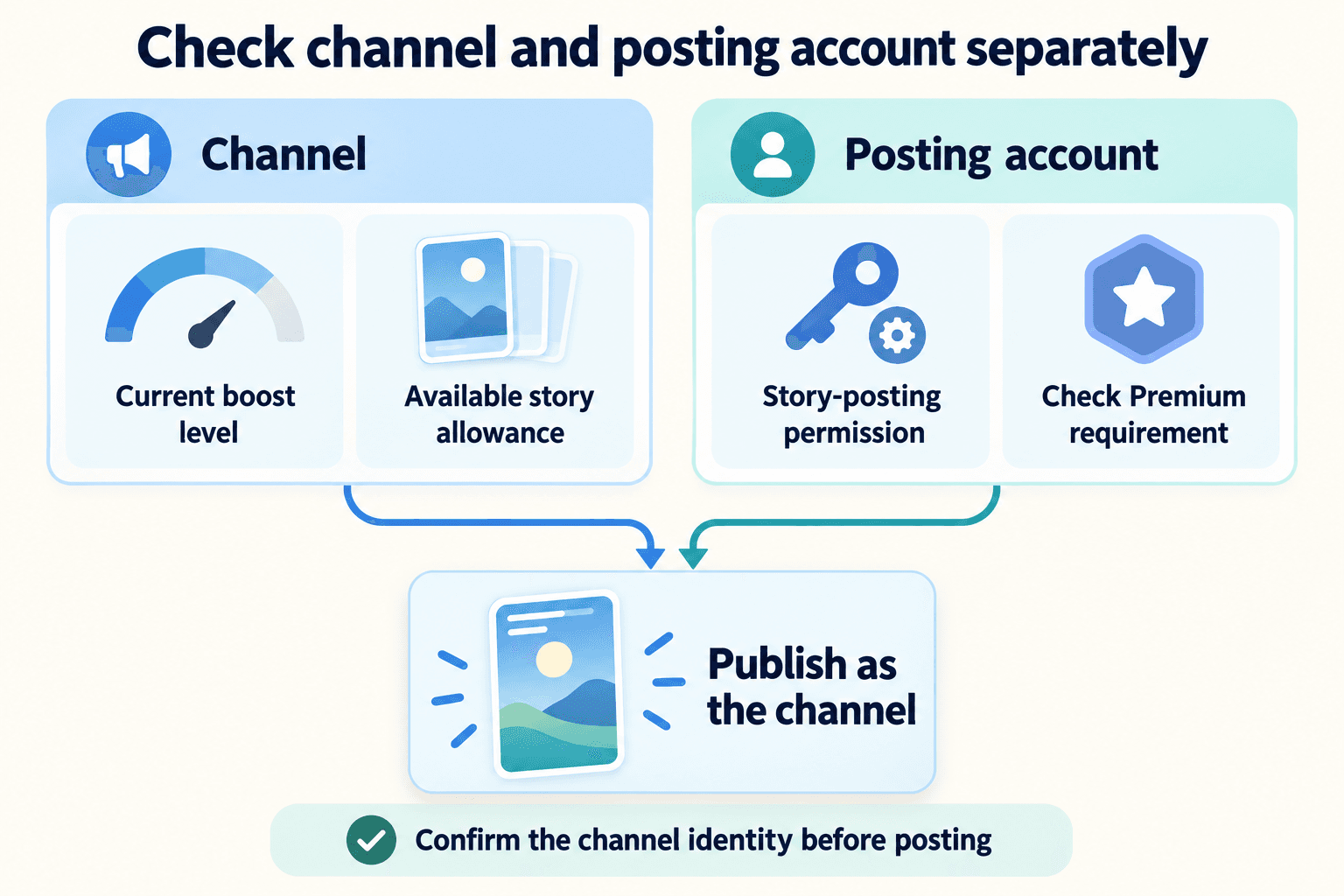
If you can’t post a Telegram channel Story, inspect the channel’s displayed boost requirement, the editor’s story-posting admin permission and that editor’s Premium status. Telegram’s channel Stories instructions specify a Premium administrator with the relevant rights. A personal Story and a Story published as your channel are separate destinations; success with one does not establish readiness for the other.
1. Confirm the channel and posting account
Write down the channel name and username, then check which Telegram account is active. This matters when an editor manages several businesses or switches between a personal and work account. Open the intended channel’s information page before making any changes. A scheduled channel message is also a different publishing task from a Story.
Start with an updated official Telegram app. The Premium FAQ notes that feature support can differ between clients. Treat menu paths below as navigation guidance: labels and placement may vary. Record the app and version if a control described in Telegram’s documentation is absent.
2. Read the channel’s boost level and capacity
Look for Statistics and Boosts in the channel profile or settings, then open Boosts. The Telegram Premium FAQ describes this route and says boost requirements depend on subscriber count. Use the requirement displayed for this channel. There is no single boost number that establishes readiness for every channel.
Separate a channel that has not unlocked enough capacity from one whose available allowance has been used. Telegram documents additional daily Stories at higher channel levels; its technical documentation also checks available active Story slots. Read the current client’s limit or waiting guidance instead of guessing a reset time.
| What you observe | Check next | Practical decision |
|---|---|---|
| Channel shows a boost shortfall | Current level and displayed requirement | Plan within current capacity or ask subscribers for voluntary boosts |
| Channel has a level but posting is limited | Current allowance and active Stories | Follow the displayed availability or waiting guidance |
| Another editor can publish, but you cannot | Your account and story-posting right | Ask the owner to review your specific permission |
| Composer opens for your personal profile | Selected publishing identity | Select the intended channel before uploading |
3. Check the editor’s rights and Premium account
Ask the owner to inspect the administrator entry for the account that will publish. Telegram’s Stories API identifies the posting permission as post_stories. Request the specific Story permission needed for the job; an unrelated message-posting right is not evidence that Story publishing is permitted.
Check Premium on that same account. Telegram’s channel Stories announcement specifies Premium for the publishing administrator. Buying Premium on a different account does not establish this editor’s readiness. Keep a short handoff record: channel, editor, permission checked, subscription checked and the next publication owner. This prevents a campaign team from repeatedly changing unrelated settings.
4. Give subscribers a reason to boost
Use the boost link obtained from your own channel’s Boosts screen. Before sharing it, explain the useful content you intend to publish. For example: ‘We’re preparing short workshop reminders and preparation tips. If you have an available boost and want this series, you can support the channel here.’ This is suggested copy, not a promise that a specific number of responses will unlock your campaign.
Check readiness again near publication, especially after handing the work to another editor. Avoid building a launch around purchased accounts, artificial boost services or a guaranteed unlock date. If you are considering a native giveaway as a separate promotion, decide its prize budget and audience rules before making it part of the Story plan.
Before announcing a prize-based promotion, compare Premium and Stars in the native giveaway planning guide and review the campaign’s entry rules and payment confirmation.
5. Publish as the channel and inspect the visible result
Before submitting, inspect the publishing identity. Telegram documents a Post Story As option; make sure the selected name is the intended channel. Then review the creative at phone size: can a reader understand the event, date and next step without knowing your earlier posts?
Illustrative planning example: a workshop channel prepares one reminder reading ‘Beginner ceramics workshop — 7 November, 14:00 — check the pinned post for location and booking details.’ The editor checks the pinned post before launch and uses the same event name there. Replace every detail with confirmed campaign information; this example describes no actual event or published result.
After publishing, open the actual Story and have a colleague check the audience-facing channel identity, legibility and destination. A successful upload alone does not establish that readers can complete the intended action. For an enquiry route, use the Telegram Business chat-link guide to prepare the destination and response owner.
6. Record the blocker or review the intended action
If publishing remains unavailable, keep the exact message shown, the time, client version, selected account, channel level and permission checks. Give that record to the owner or support through the appropriate channel. Preserve the wording rather than translating it into an error category from an unrelated guide. Do not share login codes or session files in a troubleshooting report.
For a published Story, record available views and reactions separately from enquiries or bookings. Choose a review window before launch and note other promotions running at the same time. Use the channel statistics guide for the broader reporting workflow and the content plan with polls and reactions to choose a useful follow-up. A view or boost does not establish a sale or permission for unrelated outreach.
If another part of your campaign uses an authorized customer phone list, PSYKE’s Telegram number checks can support that separate preparation task. Keep that work distinct from the channel’s eligibility checklist and from the evidence used to judge the Story.
Frequently asked questions
Does buying Premium for the admin automatically unlock channel Stories?
No. Check the channel’s boost capacity and the editor’s Story permission separately. Telegram’s channel Stories instructions specify Premium for the publishing admin; having that subscription alone does not establish that the channel can publish.
Is the same number of boosts required for every Telegram channel?
No. Telegram says the requirement varies with subscriber count. Read the level and requirement displayed in your channel’s Boosts screen, then check the currently available Story capacity before committing to a launch.