Telegram Links Not Clickable or Buttons Not Showing? Check Messages from Non-Contacts
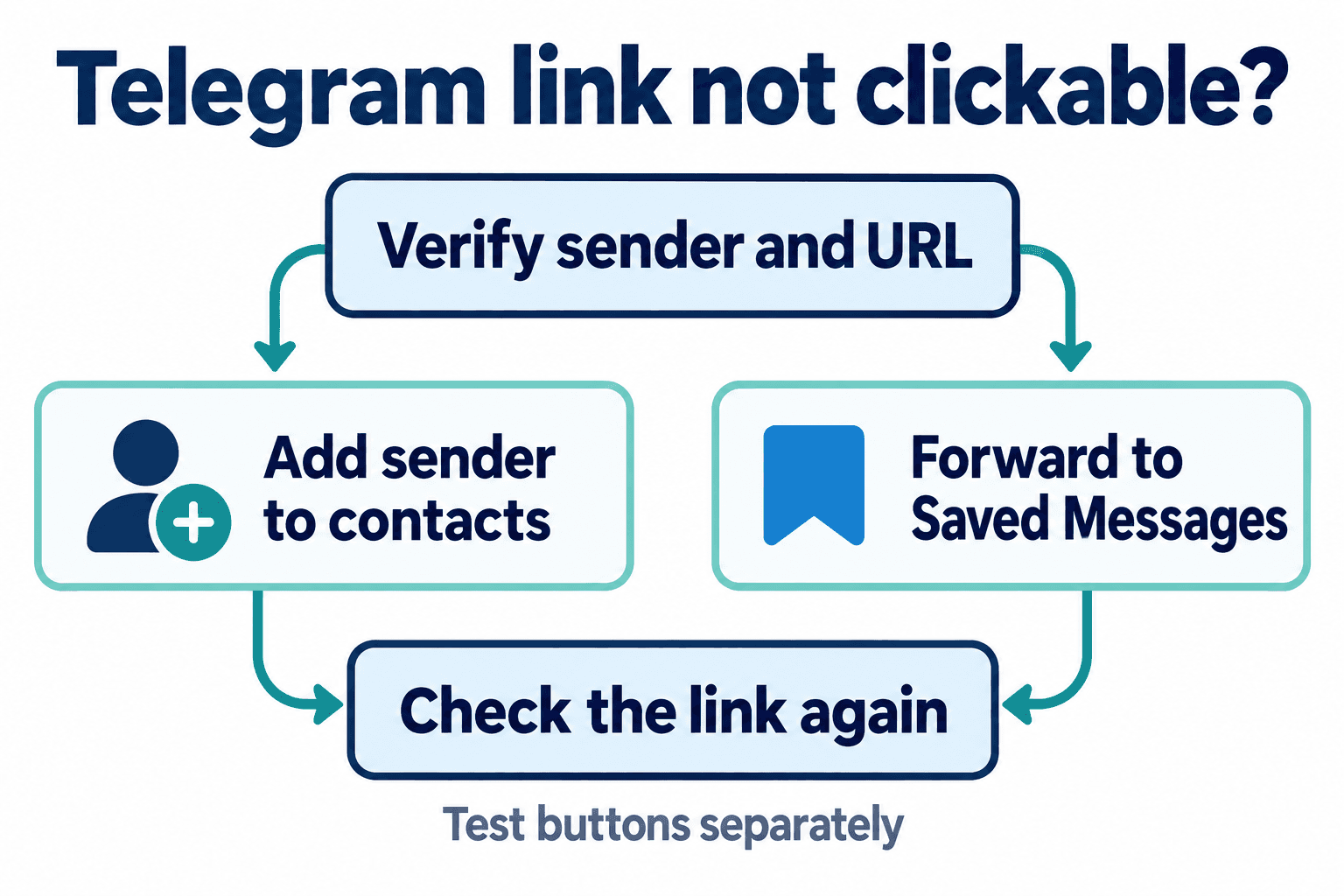
If a Telegram link is not clickable or an expected button is missing, the recipient can add the trusted sender to their Telegram contacts and check the original message again. Another option is to forward a trusted message to Saved Messages and check its link there, when forwarding is available.
Start with these recipient-side checks before asking the sender to resend. They are troubleshooting options, not guaranteed fixes. A missing button and a visible button that does nothing are different problems, so note which symptom you actually see.
1. The recipient can add the sender as a contact and check again
Confirm that you recognize the sender and expect the destination domain. Open the sender’s profile from the received private chat, then use Add to Contacts if that option is available. Save the sender in your own Telegram account, return to the conversation, and inspect the original message again.
The direction matters: the recipient adds the sender. A business saving a customer in its own contacts is a different action and does not establish what the customer sees. Menu wording and placement vary across apps and versions; adding a contact does not promise that every hidden link or button will return.
If the profile or contact flow is confusing, review Telegram contact and bot access rules. For bot messages, also confirm that you are viewing the intended bot and original conversation.
2. Forward a trusted message to Saved Messages to check its link
Select the trusted message, choose Forward, and choose Saved Messages as the destination. Open Saved Messages, inspect the URL and its destination domain, then try opening the link. This is useful as a separate check when the received conversation does not make the link usable.
This option requires forwarding to be allowed. Results can differ by message and app. It is specifically a link check: do not expect forwarding to rebuild the original buttons or restore a bot action. The verified Telegram-iOS forwarding path can remove callback markup, including the keyboard rows containing unsupported action types.
If the forwarded link still fails, ask for the original URL in a clearly readable form or return to the original bot screen. Record the app, version and exact symptom so the next check addresses the same failure.
3. Identify whether the link, button, or button action is failing
Identify the failed step before changing anything. A message arriving proves receipt of that message; it does not establish that its URL is interactive, its keyboard is visible, or its button action succeeds.
| Symptom | First check |
|---|---|
| The URL appears as plain text | Add the trusted sender as a recipient-side contact; optionally inspect the forwarded link in Saved Messages. |
| The message arrives but its expected button is absent | Recheck the original message after the contact step; keep button visibility separate from link opening. |
| The button appears but pressing it does nothing | Check the original destination or bot action; forwarding does not guarantee callback recovery. |
| A link opens but the destination fails | Verify the complete address and destination page; record the navigation result. |
4. Messages from non-contacts can have different link behavior
The official Telegram-iOS source snapshot checked on October 30, 2026 contains a conditional private-chat path that filters incoming link entities and suppresses incoming reply markup when a peer is treated as suspicious. The relevant cached flags include canReport or canBlock. This provides a concrete reason that received text and buttons can display differently.
It does not mean every non-contact is in that state. The source inspection also does not establish that every Telegram client or released version behaves identically. Contact addition and Saved Messages are practical checks here; no live device test was performed for this article, and no universal restoration claim follows from the source.
5. Give customers a clear, copy-ready explanation
Use a recognizable account or business name and specify the expected destination domain. Replace the placeholders in this customer message before sending it:
“If our link is not clickable or the expected button is missing, please open [business/account name] in this chat and add us to your Telegram contacts, then check the original message again. For a link, you can also forward this trusted message to Saved Messages and check it there if forwarding is available. The expected destination is [domain]. Forwarding may not preserve buttons; please tell us whether the link is plain text, the button is missing, or a visible button does not respond.”
Check those three outcomes separately in the customer’s app. For a visible bot button or callback problem, use Telethon button and callback troubleshooting; Telegram URL buttons for group invitations covers the invitation journey. PSYKE Telegram number checks support a separate preparation task and do not restore links or buttons.
Frequently asked questions
Does the sender adding me to contacts fix my Telegram links?
That is not the recipient-side check described here. You, as the recipient, add the trusted sender to your Telegram contacts and inspect the original message again. Results depend on the message and app; recovery is not guaranteed.
Will forwarding to Saved Messages restore missing Telegram buttons?
Do not rely on it for button restoration. Use it to inspect a trusted link when forwarding is allowed. The verified iOS forwarding path can remove callback markup, so test bot actions in the original bot conversation.